


HiSense Smart TV Remote
4.6846.00 Reviews
App Specs
- Version
- 7.0
- Updated On
- License
- Free
- Downloads
- 500,000+
- Developer
- Naba
- Categories
- House & Home
- Platform
- Android
Screenshots
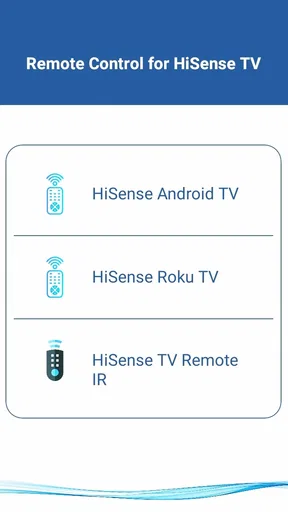
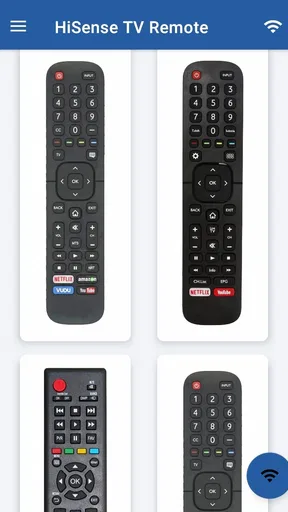
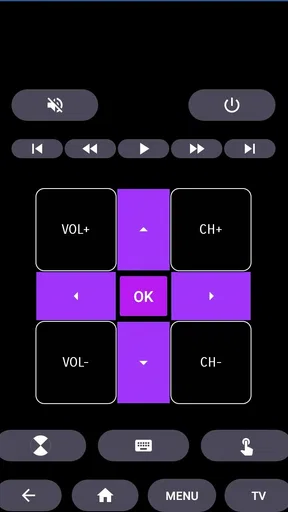
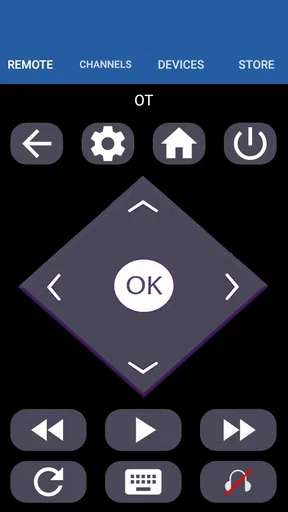
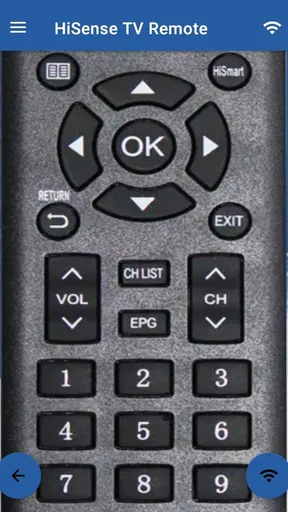
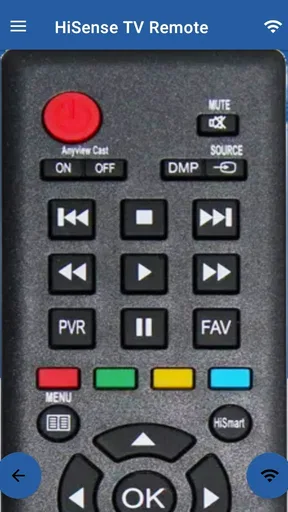
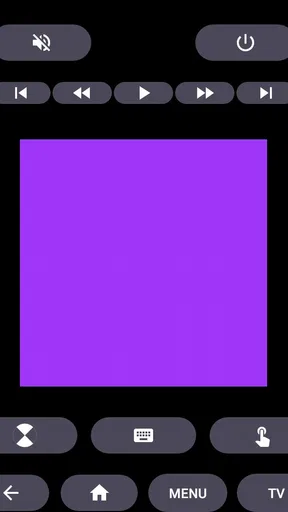
 Analysis by AppCompare
My favorite part of a phone-based TV remote is not having to search the cushions when I want to pause a show. The HiSense Smart TV Remote app turns a phone into a control for a HiSense television, and that simple idea is most useful when the physical remote is out of reach. I see it as a handy backup rather than an automatic replacement: it can make everyday viewing easier, but it depends on the TV and phone being ready to work together.
A phone as the control point
The appeal is straightforward. Instead of keeping another small device in hand, I can use the phone I already have nearby to operate the TV. That is especially convenient when I am watching something with my phone beside me, or when I have set the remote down in another room. The app is focused on HiSense TV control, so it makes most sense for someone who already owns a compatible television, not as a general remote for every screen in the house.
There is a practical distinction between a phone remote and a physical one. A physical remote is ready to grab and has buttons I can find by touch; a phone offers a familiar screen and can be easier to keep track of, but I need to unlock it and open the app. I would keep the original remote available for moments when I want immediate, tactile control or when the phone is charging.
What setup depends on
Getting started is presented as a simple process: install the app, have the HiSense TV and Wi-Fi connection ready, then look for the television from the phone. For the smoothest first attempt, I would check that the phone and TV are connected to the same home network and that the television is switched on. If the TV does not appear, checking those basics is a better first move than repeatedly tapping through the app.
The wireless approach is useful because it avoids pointing a phone at the television like an infrared handset. It also means the home network matters. A weak or interrupted connection can make a phone remote less dependable than a physical remote, so I would treat it as a convenience that works best when the TV and phone have a stable connection, rather than assuming it will be available in every situation.
A realistic living-room routine
Picture settling in for a film after dinner and realizing the remote is still on a shelf across the room. With the app already installed and connected, I can pick up my phone, pause playback, adjust the sound, or move through the TV interface without getting up. That small interruption is exactly the sort of annoyance this app can remove. It is also useful when one person has the remote and another wants to make a quick adjustment without asking for it.
There is a less obvious workflow benefit, too: the phone can serve as a single place to search and control, rather than making me alternate between a keyboard on the TV and a separate handset. Voice control, when it is available in the app and works with the particular TV setup, may reduce the effort of entering a title. I would still use on-screen navigation for names that are easy to misrecognize, or when speaking aloud would disturb someone nearby.
Worth Reading Before You Choose

EA SPORTS FC Mobile 26 Is a Bigger Football Game, but It Takes Time

Flipboard Shows What News Apps Must Do Beyond the Feed

Switching to Android Auto Means Rethinking Your Driving Routine

Google Calendar Makes a Crowded Week Easier to Manage

Ludo King Makes the Most of the Minutes Between Plans

Baby Panda World Brings Quick Play to Modern Phones, but Its Game Library Feels Busy
Getting Started with HiSense Smart TV Remote
First things first, downloading the app is a breeze. Available on both Android and iOS, it’s just a quick search away on the app store. Once installed, setting it up is pretty straightforward. All you need is a HiSense Smart TV and a Wi-Fi connection, and you're good to go. The app automatically detects your TV, and with a simple tap, you're connected.
Features that Stand Out
Now, let's dive into what makes the HiSense Smart TV Remote app so handy. The app interface is clean and intuitive, mimicking a physical remote with on-screen buttons that are easy to navigate. But it’s more than just a replacement for the remote.
Voice Control: This feature is a lifesaver when you can’t be bothered to type out what you’re searching for. Just speak into your phone, and voila, the app does the rest.
Touchpad Control: One of my favorite features is the touchpad. It lets you swipe and scroll through channels and apps with ease, just like using a smartphone.
Quick Access: The app offers shortcuts to popular streaming services right on the home screen, saving you the hassle of navigating through multiple menus.
Making phone control feel less fiddly
Touch control has a trade-off that becomes clear during longer viewing sessions. Swiping can feel quicker than moving through a list one button press at a time, but a glass screen does not give the same physical landmarks as a remote. I find it helps to pause for a moment after opening the control screen and use deliberate gestures rather than making several fast swipes. That reduces accidental moves when a menu is crowded.
For text entry, voice input can be the more comfortable route when I am searching for a show title from the sofa. It is not automatically the best choice in every room: a quiet household, a sleeping child, or a title with an unusual name may make typing or browsing the better option. The useful approach is to treat voice as a shortcut, not the only way to navigate.
Shortcuts to streaming services can also save a few steps, especially for someone who tends to open the same service each evening. They are less valuable if I mainly use one app that is already easy to reach on the TV, or if I prefer browsing the TV’s own home screen. The point is convenience, not a different streaming library; the app helps control the television rather than replacing the services installed on it.
Daily Use and Performance
Using the app day-to-day, I noticed how reliable it is. There’s no lag or delay between the app and the TV, which is crucial for keeping up with fast-paced shows or switching channels during commercials. The connection is stable, and I haven’t experienced any drops, which is a huge plus.
Another neat aspect is the app’s ability to control multiple HiSense TVs. If you’ve got several TVs at home, you can easily switch between them through the app. This feature is perfect for tech-savvy households where each room is equipped with its own smart TV.
When another option makes more sense
Compared with a standard physical remote, this app’s strengths are having a phone close at hand and offering touch and voice-based interaction. The standard remote still wins when I need instant access without unlocking a phone, when the network is unavailable, or when someone in the household prefers familiar buttons. A phone remote is also less convenient if the phone battery is low or the device is being used for something else.
Universal remote apps and hardware can be a better fit in a mixed-brand home, because a HiSense-focused controller is not the natural choice for operating televisions from several manufacturers. Likewise, if the main goal is controlling a device other than a HiSense TV, I would choose a controller designed for that device. For a household centered on HiSense televisions, however, keeping this app as a backup can be simpler than buying another accessory.
One useful habit is to test the connection before relying on the app for a particular evening, especially if guests will be using it or the TV has recently changed network settings. I would also keep the physical remote in a known place rather than putting it away permanently. That way the app is a convenient first choice when it works, while the usual handset remains an easy fallback.
Daily Use and Performance
Using the app day-to-day, I noticed how reliable it is. There’s no lag or delay between the app and the TV, which is crucial for keeping up with fast-paced shows or switching channels during commercials. The connection is stable, and I haven’t experienced any drops, which is a huge plus.
Another neat aspect is the app’s ability to control multiple HiSense TVs. If you’ve got several TVs at home, you can easily switch between them through the app. This feature is perfect for tech-savvy households where each room is equipped with its own smart TV.
Choosing it for the right household
Naba’s app is a free House & Home utility, and it has an average rating of 4.6 from around 16,000 ratings, with more than 500,000 installs. Those figures suggest that many people find the basic idea useful, but they do not tell me whether it will suit a particular TV or home network. I would make compatibility and day-to-day convenience the deciding factors rather than treating popularity as a guarantee.
It is aimed at a broad audience, with an Everyone content rating, and version 7.0 supports Android 4.4 or later. Before installing, I would make sure the phone is running a supported system and that the TV can be reached over the home Wi-Fi. Someone who wants a simple backup controller and regularly watches a HiSense TV is the strongest match; someone who expects one app to replace remotes for several unrelated brands should look elsewhere.
If the television is shared, it is worth agreeing on where the app should be opened and which phone will be used most often. That avoids the small but familiar household problem of one person controlling the TV while another is trying to browse on the same device. For a visitor, the physical remote may remain easier to explain; for a regular viewer who knows the phone interface, the app can feel more natural.
Why You Might Love It
If you’re like me and your remote has a habit of disappearing, this app is a lifesaver. It’s also incredibly convenient if you’re already using your phone while watching TV. You can quickly switch between apps, search for shows, and adjust the volume without having to juggle multiple devices.
The app also caters to those who love modern conveniences. The integration of voice control and the touchpad gives it a futuristic feel, enhancing the overall viewing experience.
Final Thoughts
In a world where everything is becoming smart, the HiSense Smart TV Remote app fits right in. It takes the hassle out of traditional TV watching and adds a layer of convenience that’s hard to beat. Whether you're tech-savvy or just looking for a simple solution to a common problem, this app is worth checking out.
Pros
- Intuitive interface for easy navigation.
- Works seamlessly with all HiSense models.
- Quick setup with no complex instructions.
- Supports voice commands for hands-free use.
- Allows customization of remote layout.
Cons
- Limited features compared to physical remote.
- Occasional lag in response time.
- Requires stable Wi-Fi connection.
- No haptic feedback on button press.
- Ads can be distracting to some users.
FAQs for HiSense Smart TV Remote
What features does the HiSense Smart TV Remote app offer?
The HiSense Smart TV Remote app provides comprehensive control over your HiSense Smart TV directly from your smartphone. Features include power on/off, volume control, channel navigation, and input switching. Additionally, it supports voice commands and has a virtual keyboard for easy text input, enhancing your overall viewing experience.
Is the HiSense Smart TV Remote app compatible with all HiSense TV models?
The app is compatible with most HiSense Smart TV models released in recent years. However, it is essential to verify compatibility with your specific model before downloading. Check the app's description on the Google Play or Apple App Store for a list of supported models to ensure seamless functionality.
How do I connect my smartphone to my HiSense Smart TV using the app?
To connect, ensure both your smartphone and HiSense Smart TV are on the same Wi-Fi network. Open the app and follow the on-screen instructions to pair your devices. This often involves selecting your TV from a list and confirming the connection with a code displayed on your TV screen.
Does the HiSense Smart TV Remote app require an internet connection to function?
Yes, an internet connection is necessary for the app to function correctly. Both your smartphone and HiSense TV must be connected to the same Wi-Fi network. This connection is crucial for syncing commands between your devices, ensuring smooth control and operation.
What should I do if the HiSense Smart TV Remote app stops working?
If the app stops working, first ensure your devices are connected to the same Wi-Fi network. Restart your smartphone and TV, then reopen the app. If issues persist, check for app updates or reinstall it. For further assistance, consult the app's support section or contact HiSense customer support.


